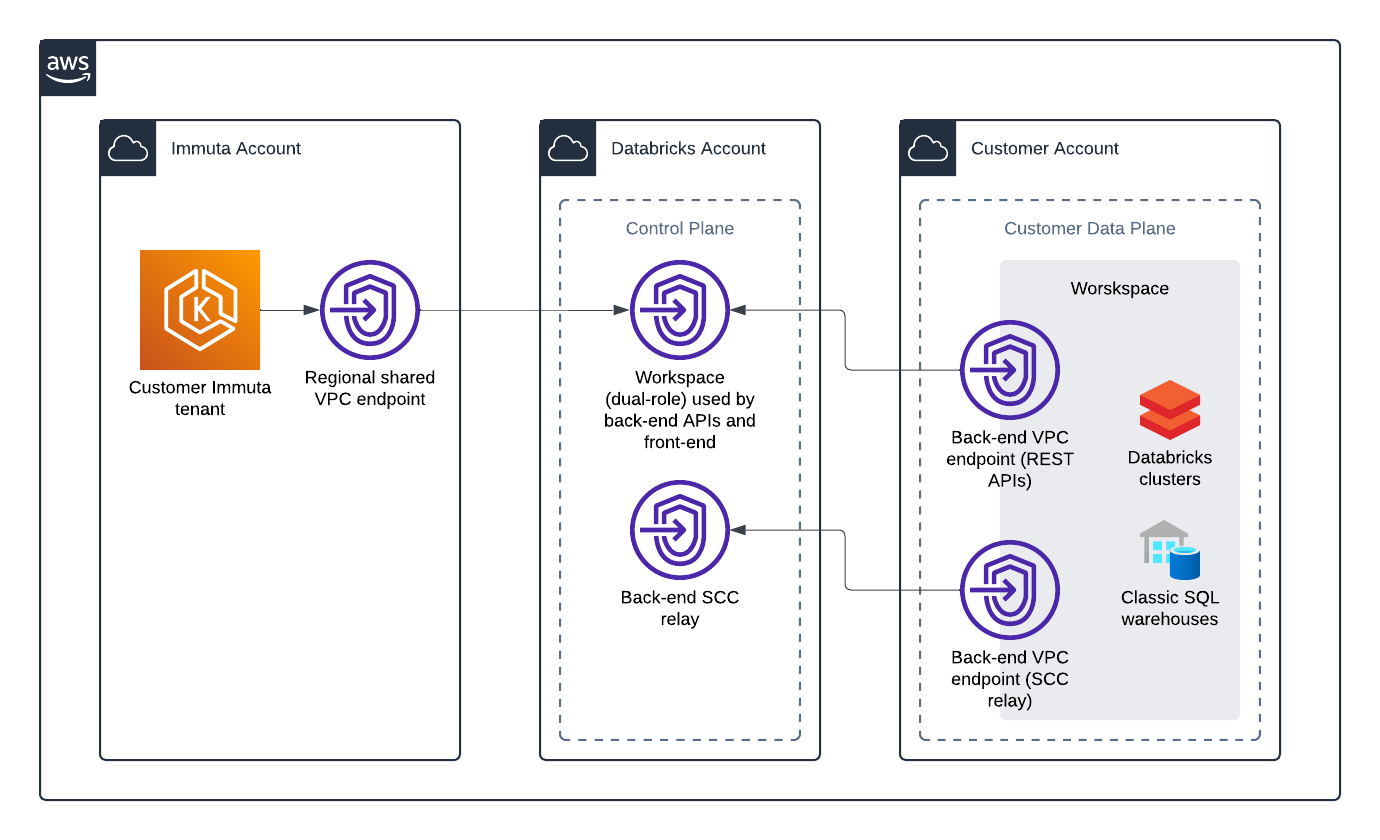
.privatelink.cloud.databricks.com`. Immuta SaaS uses these publicly-resolvable records to direct traffic to a PrivateLink endpoint on our network.
This means that **if you have PrivateLink enabled on your workspace, you must follow these instructions to configure your integration.** Even if your workspace is also publicly-routable, Databricks's DNS resolution forces the traffic over PrivateLink.
The two supported configurations are
* A workspace with no PrivateLink configuration, which resolves to public IP addresses.
* A workspace with PrivateLink configuration, which allows access from the Immuta SaaS regional endpoint (listed below).
{% endhint %}
### Enablement
Contact your Databricks representative to enable AWS PrivateLink on your account.
## Configure Databricks with AWS PrivateLink
1. [Register the Immuta VPC endpoint ](https://docs.databricks.com/en/security/network/classic/vpc-endpoints.html)for the applicable AWS region with your Databricks workspaces. The Immuta VPC endpoint IDs are listed in the table below.
| AWS region | VPC endpoint ID |
| ------------------------------------------------------------------------------- | ------------------------ |
| ap-northeast-1
Asia Pacific (Tokyo)
| `vpce-08cadda15f0f70462` |
| ap-northeast-2
Asia Pacific (Seoul)
| `vpce-0e45ce26a7f8d00af` |
| ap-south-1
Asia Pacific (Mumbai)
| `vpce-0efef886a4fbd9532` |
| ap-southeast-1
Asia Pacific (Singapore)
| `vpce-07e9890053f5084b2` |
| ap-southeast-2
Asia Pacific (Sydney)
| `vpce-0d363d9ea82658bec` |
| ca-central-1
Canada (Central)
| `vpce-01933bcf30ac4ed19` |
| eu-central-1
Europe (Frankfurt)
| `vpce-0048e36edfb27d0aa` |
| eu-west-1
Europe (Ireland)
| `vpce-0783d9412b046df1f` |
| eu-west-2
Europe (London)
| `vpce-0f546cc413bf70baa` |
| us-east-1
US East (Virginia)
| `vpce-0c6e8f337e0753aa9` |
| us-east-2
US East (Ohio)
| `vpce-00ba42c4e2be20721` |
| us-west-2
US West (Oregon)
| `vpce-029306c6a510f7b79` |
2. Identify your [private access level](https://docs.databricks.com/en/security/network/classic/private-access-settings.html) (either `ACCOUNT` or `ENDPOINT`) and configure your Databricks workspace accordingly.
1. If the `private_access_level` on your `private_access_settings` object is set to `ACCOUNT`, no additional configuration is required.
2. If the `private_access_level` on your `private_access_settings` object is set to `ENDPOINT`, using the table above, you will need to add it to the `allowed_vpc_endpoint_ids` list inside your `private_access_settings` object in Databricks. For example,
```json
"private_access_settings_name": "immuta-access",
"region": "us-east-1",
"public_access_enabled": false,
"private_access_level": "ENDPOINT",
"allowed_vpc_endpoint_ids": [
"vpce-0fe5b17a0707d6fa5"
]
```
3. Configure Databricks depending on your integration type:
1. [Configure the Databricks Unity Catalog integration](/SaaS/configuration/integrations/databricks/databricks-unity-catalog/how-to-guides/connect-unity-catalog.md) using your standard `cloud.databricks.com` workspace URL as the **Host**.
2. Configure the [Databricks Spark integration](/SaaS/configuration/integrations/databricks/databricks-spark/how-to-guides/simplified.md) using your standard `cloud.databricks.com` URL. And [register your tables as Immuta data sources](/SaaS/configuration/integrations/data-and-integrations/registering-metadata/register-data-sources/databricks-tutorial.md) using the `cloud.databricks.com` as the **Server** when registering data sources.
---
# Agent Instructions
This documentation is published with GitBook. GitBook is the documentation platform designed so that both humans and AI agents can read, navigate, and reason over technical content effectively. Learn more at gitbook.com.
## Querying This Documentation
If you need additional information that is not directly available in this page, you can query the documentation by asking a question.
Perform an HTTP GET request on the following URL with the `ask` and `goal` query parameters:
```
GET https://documentation.immuta.com/SaaS/configuration/application-configuration/how-to-guides/private-networking-support/data-connection-private-networking/index/aws-privatelink.md?ask=&goal=
```
`ask` is the immediate question: it should be specific, self-contained, and written in natural language.
`goal` is what the user is ultimately trying to achieve, the reason they need the answer. Sharing it helps GitBook give you a better, more relevant answer. A goal is most helpful when it describes the outcome the user wants rather than restating the question. For example, with `ask=how do I create an API token`, a goal like `automate deployments from our CI pipeline` lets GitBook tailor the answer to that use case.
The response will contain a direct answer to the question and relevant excerpts and sources from the documentation.
Use this mechanism when the answer is not explicitly present in the current page, you need clarification or additional context, or you want to retrieve related documentation sections.