# Masking Policies
Masking policies hide values in data, providing various levels of utility while still preserving privacy. Immuta offers column masking and [cell-level masking](#cell-level-masking).
As with all Immuta policy types, use [global policies](https://documentation.immuta.com/saas/govern/secure-your-data/authoring-policies-in-secure/..#authoring-policy-at-scale) when [authoring masking policies](https://documentation.immuta.com/saas/govern/secure-your-data/authoring-policies-in-secure/data-policies/how-to-guides/data-policy-tutorial) to manage policies at scale. When using global policies, tagging your data with metadata becomes critical and is described in detail in the [Compliantly open more sensitive data for ML and analytics](https://documentation.immuta.com/saas/govern/getting-started-with-secure/compliantly-open-more-sensitive-data-for-ml-and-analytics/open-managing-data-metadata) use case.
The masking options described on this page can be implemented in a variety of use cases, and there are several different approaches for masking data that allow you to make tradeoffs between privacy (how far you go with masking) and utility (how much you want the masked data to be useful to the data consumer). Use the table below to determine the circumstance under which a function should be used.
| | Nulling | Constant | Regex | Hashing | Reversible masking | Format preserving masking | Randomized response | Rounding | Custom function |
| :----------------------------------------------------------------: | :------------------: | :------------------: | :----------------------------------------------: | :------------------------------------------------: | :------------------------------------------------: | :------------------------------------------------: | :----------------------------------------------: | :----------------------------------------------: | :----------------------------------------------: |
| [Preserves equality and grouping](#user-content-fn-1)[^1] | :x: | :x: | [Supported with caveats](#user-content-fn-2)[^2] | :white\_check\_mark: | :white\_check\_mark: | :white\_check\_mark: | :x: | :x: | [Supported with caveats](#user-content-fn-3)[^3] |
| [Preserves range statistics](#user-content-fn-4)[^4] | :x: | :x: | [Supported with caveats](#user-content-fn-2)[^2] | :white\_check\_mark: | :white\_check\_mark: | :white\_check\_mark: | [Supported with caveats](#user-content-fn-5)[^5] | [Supported with caveats](#user-content-fn-6)[^6] | [Supported with caveats](#user-content-fn-3)[^3] |
| [Preserves value locality](#user-content-fn-7)[^7] | :x: | :x: | :x: | :x: | :x: | :x: | [Supported with caveats](#user-content-fn-8)[^8] | :white\_check\_mark: | [Supported with caveats](#user-content-fn-3)[^3] |
| [Preserves averages](#user-content-fn-9)[^9] | n/a | n/a | n/a | n/a | n/a | :x: | :white\_check\_mark: | [Supported with caveats](#user-content-fn-6)[^6] | [Supported with caveats](#user-content-fn-3)[^3] |
| [Preserves message length](#user-content-fn-10)[^10] | :x: | :x: | [Supported with caveats](#user-content-fn-2)[^2] | :x: | :x: | [Supported with caveats](#user-content-fn-11)[^11] | :x: | n/a | [Supported with caveats](#user-content-fn-3)[^3] |
| Reversible | :x: | :x: | :x: | :x: | :white\_check\_mark: | :white\_check\_mark: | :x: | :x: | [Supported with caveats](#user-content-fn-3)[^3] |
| [Preserves appearance](#user-content-fn-12)[^12] | :x: | :x: | [Supported with caveats](#user-content-fn-2)[^2] | :x: | :x: | :white\_check\_mark: | :white\_check\_mark: | :white\_check\_mark: | [Supported with caveats](#user-content-fn-3)[^3] |
| [Applicable to numeric data](#user-content-fn-13)[^13] | :x: | :x: | :x: | :x: | :x: | :white\_check\_mark: | :white\_check\_mark: | :white\_check\_mark: | [Supported with caveats](#user-content-fn-3)[^3] |
| [Provides deniability of record content](#user-content-fn-14)[^14] | :white\_check\_mark: | :white\_check\_mark: | [Supported with caveats](#user-content-fn-2)[^2] | [Supported with caveats](#user-content-fn-15)[^15] | :x: | :x: | :white\_check\_mark: | :x: | [Supported with caveats](#user-content-fn-3)[^3] |
| [Suitable for de-identification](#user-content-fn-16)[^16] | :white\_check\_mark: | :white\_check\_mark: | [Supported with caveats](#user-content-fn-2)[^2] | [Supported with caveats](#user-content-fn-15)[^15] | [Supported with caveats](#user-content-fn-15)[^15] | [Supported with caveats](#user-content-fn-8)[^8] | :x: | :x: | [Supported with caveats](#user-content-fn-3)[^3] |
| [Column value determinism](#user-content-fn-17)[^17] | :white\_check\_mark: | :white\_check\_mark: | :white\_check\_mark: | :white\_check\_mark: | :white\_check\_mark: | :white\_check\_mark: | :x: | :white\_check\_mark: | [Supported with caveats](#user-content-fn-3)[^3] |
| [Introduces NULLs](#user-content-fn-18)[^18] | :white\_check\_mark: | :x: | :x: | :x: | :x: | :white\_check\_mark: | :white\_check\_mark: | :x: | [Supported with caveats](#user-content-fn-3)[^3] |
| Performance[^19] | 10/10 | 10/10 | Variable | 6/10 | 4/10 | 2/10 | 5/10 | 8/10 | Variable |
{% hint style="info" %}
**Masking policy support by integration**
Since global policies can apply masking policies across multiple different databases at once, if an unsupported masking policy is applied to a column, Immuta will revert to NULLing that column.
See the [data policy support matrix](https://documentation.immuta.com/saas/govern/secure-your-data/authoring-policies-in-secure/data-policies/data-policies#data-policy-support-matrix) for an outline of masking policies supported by each integration.
{% endhint %}
## Masking types
### Constant
Masking with a constant replaces any value in a column with a specified value. For example, you can replace the values in a column with the constant `Redacted`. The underlying data will appear to be a constant, removing any utility of that data.
Apply this policy to strings that require a specific repeated value.
### Custom function
This option uses SQL functions native to the underlying database to transform the values in a column. This can be used in numerous use cases, but notional examples include top-coding to some upper limit, a custom hash function, and string manipulation.
Single quotes enclosing the regex and escaping special characters are required. The following example masks telephone numbers variably depending on the presence of a dash (implying a prefix), space, or only digits:
```
REGEXP_REPLACE(@column, '(\\+?\\d{0,3}[-\\s]?)?\\d{4}', '****')
```
The image below illustrates authoring a global policy using this custom function:
Note the use of @column to specify the column to which this should apply
**Limitations**
* The masking functions are executed against the remote database directly. A poorly written function could lead to poor quality results, data leaks, and performance hits.
* Using custom functions can result in changes to the original data type. In order to prevent query errors you must ensure that you cast this result back to the original type.
* The function must be valid for the data type of the selected column. If it is not
* Local policies will error and show a message that the function is not valid.
* Global policies will error and change to the default masking type (hashing for text and NULL for all others).
### Format preserving masking
{% hint style="info" %}
**Support limitation**: This policy is only supported in the Snowflake integration.
{% endhint %}
Format preserving masking uses a reversible function to mask the data in a way that the underlying structure of a value is preserved, so the length and type of a value are maintained. This is appropriate when the masked value should appear in the same format as the underlying value. Examples of this include social security numbers and credit card numbers where mask with format preserving masking would return masked values in a format consistent with credit cards or social security numbers, respectively.
There is larger overhead with this masking type, and it should really only be used when format is critically valuable, such as situations when an engineer is building an application where downstream systems validate content. In almost all analytical use cases, format should not matter.
### Hashing
Hashing masks the values with an irreversible sha256 hash, which is consistent for the same value throughout the data source, so you can count or track the specific values, but not know the true raw value.
This policy type is appropriate for cases where the underlying value is sensitive, but there is a need to segment the population. Such attributes could be addresses, time segments, or countries. It is important to note that hashing is susceptible to inference attacks based on prior knowledge of the population distribution. For example, if `state` is hashed, and the dataset is a sample across the United States, then an adversary could assume that the most frequently occurring hash value is `California`. As such, it's most secure to use the hashing mask on attributes that are evenly distributed across a population.
Hashed values are different across data sources, so you cannot join on hashed values unless you [enable masked joins on data sources within a project](https://documentation.immuta.com/saas/govern/secure-your-data/projects-and-purpose-based-access-control/masked-joins). Immuta prevents joins on hashed values to protect against link attacks where two data owners may have exposed data with the same masked column (a quasi-identifier), but their data combined by that masked value could result in a sensitive data leak.
### NULL
This masking type replaces the values in the column with `NULL`, removing any identifiability from the column and all utility of the data.
Apply this policy to numeric or text attributes that have a high re-identification risk, but little analytic value (names and personal identifiers).
### Randomized response
{% hint style="info" %}
**Support limitation**: This policy is only supported in the Snowflake integration.
{% endhint %}
Randomized response masks data by slightly randomizing the values in a column, preserving the utility of the data while preventing outsiders from inferring content of specific records.
This function randomizes the displayed value to make the true value uncertain, but maintains some analytic utility.
For example, if an analyst wanted to publish data from a health survey she conducted, she could remove direct identifiers to make it difficult to single out individuals. However, consider these survey participants, a cohort of male welders who share the same zip code:
| participant\_id | zip\_code | gender | occupation | substance\_abuse |
| --------------- | --------- | ------ | ---------- | ---------------- |
| `880d0096` | 75002 | Male | Welder | Y |
| `f267334b` | 75002 | Male | Welder | Y |
| `bfdb43db` | 75002 | Male | Welder | Y |
| `260930ce` | 75002 | Male | Welder | Y |
| `046dc7fb` | 75002 | Male | Welder | Y |
All members of this cohort have indicated substance abuse, sensitive personal information that could have damaging consequences, and, even though direct identifiers have been removed, outsiders could infer substance abuse for an individual if they knew a male welder in this zip code.
In this scenario, using randomized response would change some of the Y's in `substance_abuse` to N's and vice versa; consequently, outsiders couldn't be sure of the displayed value of `substance_abuse` given in any individual row, as they wouldn't know which rows had changed.
The randomization is applied differently to both categorical and quantitative values. In both cases, the noise can be increased to enhance privacy or reduced to preserve more analytic value. Immuta requires that you [opt in to use this masking policy type](https://documentation.immuta.com/saas/configuration/application-configuration/how-to-guides/config-builder-guide#randomized-response).
* **Categorical randomized response**: Categorical values are randomized by replacing a value with some non-zero probability. Not all values are randomized, and the consumer of the data is not told which values are randomized and which ones remain unchanged. Values are replaced by selecting a different value uniformly at random from among all other values. If a randomized response policy were applied to a “state” column, a person’s residency could flip from Maryland to Virginia, which would provide ambiguity to the actual state of residency. This policy is appropriate when obscuring sensitive values such as medical diagnosis or survey responses.
* **Datetime and numeric randomized response**: Numeric and datetime randomized response apply a tunable, unbiased noise to the nominal value. This noise can obscure the underlying value, but the impact of the noise is reduced in aggregate. This masking type can be applied to sensitive numerical attributes, such as salary, age, or treatment dates.
#### **How the randomization works**
{% hint style="info" %}
**Sample data is processed during computation of randomized response policies**
When a randomized response policy is applied to a data source, the columns targeted by the policy are queried under a fingerprinting process. To enforce the policy, Immuta generates and stores predicates and a list of allowed replacement values that may contain data that is subject to regulatory constraints (such as GDPR or HIPAA) in Immuta's metadata database.
The location of the metadata database depends on your deployment:
* Self-managed Immuta deployment: The metadata database is located in the server where you have your external metadata database deployed.
* SaaS Immuta deployment: The metadata database is located in the AWS global segment you have chosen to deploy Immuta.
To ensure this process does not violate your organization's data localization regulations, you need to first [activate this masking policy type](https://documentation.immuta.com/saas/configuration/application-configuration/how-to-guides/config-builder-guide#randomized-response) before you can use it in your Immuta tenant.
{% endhint %}
Immuta applies a random number generator (RNG) that is seeded with some fixed attributes of the data source, column, backing technology, and the value of the high cardinality column, an approach that simulates cached randomness without having to actually cache anything.
For string data, the random number generator essentially flips a biased coin. If the coin comes up as tails, which it does with the frequency of the replacement rate [configured in the policy](https://documentation.immuta.com/saas/govern/secure-your-data/authoring-policies-in-secure/data-policies/how-to-guides/data-policy-tutorial), then the value is changed to any other possible value in the column, selected uniformly at random from among those values. If the coin comes up as heads, the true value is released.
For numeric data, Immuta uses the RNG to add a random shift from a 0-centered Laplace distribution with the standard deviation specified in the policy configuration. For most purposes, knowing the distribution is not important, but the net effect is that on average the reported values should be the true value plus or minus the specified deviation value.
#### **Preserving data utility**
Using randomized response doesn't destroy the data because data is only randomized slightly; aggregate utility can be preserved because analysts know how and what proportion of the values will change. Through this technique, values can be interpreted as hints, signals, or suggestions of the truth, but it is much harder to reason about individual rows.
Additionally, randomized response gives deniability of *record content* not *dataset participation*, so individual rows can be displayed.
### Regular expression (regex)
{% hint style="warning" %}
**Deprecation notice**
Support for masking with a non-global regex on Redshift data sources has been deprecated. Policy authors must use the global flag (by selecting **Global** in the regex policy builder) when masking using a regex on Redshift data sources.
See the [Deprecations page](https://documentation.immuta.com/saas/releases/deprecations) for EOL dates.
{% endhint %}
This masking option uses a regular expression to replace all or a portion of a column value.
This policy is similar to replacing with a constant, but it provides more utility because you can retain portions of the true value, and REGEX replacement allows for some groupings to be maintained, while providing greater ambiguity to the disclosed value. This masking technique is useful when the underlying data has some consistent structure, the remasked underlying data represents some re-identification risk, and a regular expression can be used to mask the underlying data to be less identifiable.
When authoring the policy in Immuta, the regex and the replacement value do not need to be in single or double quotes.
{% tabs %}
{% tab title="Simple regex example" %}
The following regex rule would mask the final digits of an IP address:
> Mask using a regex `\d+$` the value in the columns `ip_address` for everyone.
In this case, the regular expression `\d+$`
`\d` matches a digit (equal to \[0-9])
`+` Quantifier — Matches between one and unlimited times, as many times as possible, giving back as needed (greedy)
`$` asserts position at the end of the string, or before the line terminator right at the end of the string (if any)
This ensures we capture the last digit(s) after the last `.` in the IP address. We then can enter the replacement for what we captured, which in this case is `XXX`. So the outcome of the policy, would look like this: `164.16.13.XXX`
{% endtab %}
{% tab title="Complex regex example" %}
This regex rule applies masking to telephone numbers variably depending on the presence of a dash (implying a prefix), space, or only digits:
> Mask using a regex (\\+?\d{0,3}\[-\s]?)?\d{4} the value in the column tagged `Discovered...Telephone Number` for everyone.
> {% endtab %}
> {% endtabs %}
The image below illustrates authoring a regex global policy that will apply to Databricks Unity Catalog data sources:
A regex applied to Databricks which requires Global pattern to be enabled and Case insensitivity disabled.
{% hint style="info" %}
**Databricks Unity Catalog integration regex\_replace function**
The Databricks Unity Catalog integration uses Spark’s built in `regex_replace` function. That Databricks function currently [only supports global pattern flags set as global (`g`) and case-sensitive](https://documentation.immuta.com/saas/configuration/integrations/databricks/databricks-unity-catalog/unity-catalog-overview#unity-catalog-caveats). Regex will not work on this platform unless these settings are appropriately configured.
{% endhint %}
### Reversibility
{% hint style="warning" %}
**Deprecation notice**
Support for reversible masking on Redshift data sources has been deprecated.
See the [Deprecations page](https://documentation.immuta.com/saas/releases/deprecations) for EOL dates.
{% endhint %}
This masking option masks the values using a token[^20] that is consistent for the same value throughout the data source, so you can count or track the specific values, but not know the true raw value.
This policy type is appropriate for cases where the underlying value is sensitive, but there is a need to segment the population. Such attributes could be addresses, time segments, or countries. Reversible hashing is susceptible to inference attacks based on prior knowledge of the population distribution. For example, if `state` is hashed, and the dataset is a sample across the United States, then an adversary could assume that the most frequently occurring hash value is `California`. As such, it's most secure to use the reversible hashing mask on attributes that are evenly distributed across a population.
Hashed values are different across data sources, so you cannot join on hashed values unless you [enable masked joins on data sources within a project](https://documentation.immuta.com/saas/govern/secure-your-data/projects-and-purpose-based-access-control/masked-joins). Immuta prevents joins on hashed values to protect against link attacks where two data owners may have exposed data with the same masked column (a quasi-identifier), but their data combined by that masked value could result in a sensitive data leak.
Reversibly masked fields can leak the length of their contents, so it is important to consider whether or not this may be an attack vector for applications involving its use.
### Rounding
Rounding masking policies reduce, round, or truncate numeric or datetime values to a fixed precision.
This technique hides precision from numeric values while providing more utility than simply hashing. For example, you could remove precision from a geospatial coordinate. You can also use this type of policy to remove precision from dates and times by rounding to the nearest hour, day, month, or year.
* **Datetime rounding**: This policy truncates the precision of a datetime value to a user-defined precision. `minute`, `hour`, `day`, `months`, and `year` are the supported precisions.
* **Numeric rounding**: This policy maps the nominal value to the ceiling of some specified bandwidth. Immuta has a recommended bandwidth based on the Freedman-Diaconis rule.
## Masking exceptions
Exceptions to masking policies allow users specified in the exception to see masked data in the clear. Expand the collapsible blocks below to see how the different masking exceptions work.
Exempt user from data masking when user is acting under a purpose
If a user is **acting under a purpose**, they will see masked data in the clear.
The table below illustrates how the following policy enforces access controls for 3 different users:
> Mask columns tagged `restricted` by making NULL for everyone except when user **is acting under purpose `Employee Retention`**
name column
email column
wage
office location
name column restricted
email column restricted
wage column restricted
office location column (no tags)
User A purpose
Marketing Research
❌
❌
❌
✅
User B purpose
Employee Retention
✅
✅
✅
✅
User C purpose
Internship Capstone
❌
❌
❌
✅
In this example,
* **User A** can only see the **office location column** since it is not tagged as `restricted`. The other columns are masked because this user is not acting under the `Employee Retention` purpose specified in the policy.
* **User B** can see **all columns** because they are acting under the `Employee Retention` purpose the policy specifies.
* **User C** can only see the **office location column** since it is not tagged as `restricted`. The other columns are masked because this user is not acting under the `Employee Retention` purpose specified in the policy.
Exempt user from data masking when user possesses an attribute with a specific key and value
If a user **possesses an attribute with the specified key and value**, they will see masked data in the clear for data sources the policy applies to.
The table below illustrates how the following policy enforces access controls for 3 different users:
> Mask columns tagged `restricted` by making NULL for everyone except when user **possesses an attribute with key `Employee` and value `Marketing`**
name column
email column
wage
office location
name column restricted
email column restricted
wage column restricted
office location column (no tags)
User A attribute
Employee:Marketing
✅
✅
✅
✅
User B attribute
Employee:Finance
❌
❌
❌
✅
User C attribute
Intern:Marketing
❌
❌
❌
✅
In this example,
* **User A** can see **all columns** because they possess the `Employee.Marketing` attribute key-value pair the masking policy exception criteria specifies.
* **User B** can only see the **office location column** since it is not tagged as `restricted`. The other columns are masked because this user does not have the `Marketing` attribute value specified in the masking policy exception criteria.
* **User C** can only see the **office location column** since it is not tagged as `restricted`. Although this user has an attribute value of `Marketing`, the user's attribute key `Intern` does not match the attribute key `Employee` specified in the masking policy exception criteria, so the `restricted` columns are masked for this user.
Exempt user from data masking when user possesses an attribute with a specific key and any value that matches any column tag
{% hint style="info" %}
This masking exception type is only supported for global data policies.
{% endhint %}
If a user possesses an **attribute with a key and value that matches any tag on the column**, they will see the masked data in the tagged column in the clear.
The table below illustrates how the following policy enforces access controls for 4 different users:
> Mask columns tagged `restricted` by making NULL for everyone except when user **possesses an attribute with key `Employee` and value that matches any column tag**
name column
email column
wage
office location
name column restricted, HR
email column restricted, Marketing
wage column restricted, HR, Finance
office location column (no tags)
User A attribute
Employee:Marketing
❌
✅
❌
✅
User B attribute
Employee:Finance
❌
❌
✅
✅
User C attribute
Employee:HR
✅
❌
✅
✅
User D attribute
Intern:Marketing
❌
❌
❌
✅
In this example,
* **User A** can see the **email column** because the masking policy exception criteria specifies the `Employee` attribute key, and the `Marketing` tag on the column matches the user's `Marketing` attribute value. Because the **office location column** is not tagged as `restricted`, the user can also see that column in the clear.
* **User B** can see the **wage column** because the masking policy exception criteria specifies the `Employee` attribute key, and the `Finance` tag on the column matches the user's `Finance` attribute value. Because the **office location column** is not tagged as `restricted`, the user can also see that column in the clear.
* **User C** can see the **name column** and **wage column** because the masking policy exception criteria specifies the `Employee` attribute key, and the `HR` tag on the columns matches the user's `HR` attribute value. Because the **office location column** is not tagged as `restricted`, the user can also see that column in the clear.
* **User D** can only see the **office location column** since it is not tagged as `restricted`. Although this user has an attribute value of `Marketing`, which matches the `Marketing` tag on the email column, the user's attribute key `Intern` does not match the attribute key `Employee` specified in the masking policy exception criteria, so the email column is masked for this user.
Exempt user from data masking when user possesses an attribute with a specific key and any value that matches any data source tag
{% hint style="info" %}
This masking exception type is only supported for global data policies.
{% endhint %}
If a user **possesses an** **attribute with a key and value that matches any tag on the data source**, they will see the masked data in the tagged data source in the clear.
The table below illustrates how the following policy enforces access controls for 4 different users:
> Mask columns tagged `restricted` by making NULL for everyone except when user **possesses an attribute with key `Employee` and value that matches any data source tag**
Employee survey results data source (tags: #HR)
Purchase orders data source (tags: #Finance)
Customer contacts data source (tags: #Marketing)
Employee survey results data source HR
Purchase orders data source Finance
Customer contacts data source Marketing, HR
User A attribute
Employee:Marketing
❌
❌
✅
User B attribute
Employee:Finance
❌
✅
❌
User C attribute
Employee:HR
✅
❌
✅
User D attribute
Intern:Marketing
❌
❌
❌
In this example,
* **User A** can see any column tagged `restricted` in the **Customer contacts data source** because the masking policy exception criteria specifies the `Employee` attribute key, and the `Marketing` tag on the data source matches the user's `Marketing` attribute value.
* **User B** can see any column tagged `restricted` in the **Purchase orders data source** because the masking policy exception criteria specifies the `Employee` attribute key, and the `Finance` tag on the data source matches the user's `Finance` attribute value.
* **User C** can see any column tagged `restricted` in the **Employee survey results data source** and the **Customer contacts data source** because the masking policy exception criteria specifies the `Employee` attribute key, and the `HR` tag on the data sources matches the user's `HR` attribute value.
* **User D** cannot see any masked columns in these data sources. Although this user has an attribute value of `Marketing`, which matches the `Marketing` tag on the **Customer contacts data source**, the user's attribute key `Intern` does not match the attribute key `Employee` specified in the masking policy exception criteria, so the columns are masked for this user.
Exempt user from data masking when user is a member of a specific group
If a user is a **member of the specified group**, they will see masked data in the clear for data sources the policy applies to.
The table below illustrates how the following policy enforces access controls for 3 different users:
> Mask columns tagged `restricted` by making NULL for everyone except when user **is a member of group with name `HR`**
| |
| :white\_check\_mark: | :white\_check\_mark: | :white\_check\_mark: | :white\_check\_mark: |
In this example,
* **User A** can only see the **office location column** since it is not tagged as `restricted`. The other columns are masked because this user is not a member of the `HR` group specified in the masking policy exception criteria.
* **User B** can only see the **office location column** since it is not tagged as `restricted`. The other columns are masked because this user is not a member of the `HR` group specified in the masking policy exception criteria.
* **User C** can see **all columns** because they are a member of the `HR` group the masking policy exception criteria specifies.
Exempt user from data masking when user is a member of any group with a name that matches any column tag
{% hint style="info" %}
This masking exception type is only supported for global data policies.
{% endhint %}
If a user is a **member of a group that matches any tag on the column**, they will see the masked data in the tagged column in the clear.
The table below illustrates how the following policy enforces access controls for 4 different users:
> Mask columns tagged `restricted` by making NULL for everyone except when user **is a member of a group** **with** **name that matches any column tag**.
| |
| :x: | :x: | :x: | :white\_check\_mark: |
In this example,
* **User A** can see the **email column** because the `Marketing` tag on the column matches the user's group name. Because the **office location column** is not tagged as `restricted`, the user can also see that column in the clear.
* **User B** can see the **wage column** because the `Finance` tag on the column matches the user's group name. Because the **office location column** is not tagged as `restricted`, the user can also see that column in the clear.
* **User C** can see the **name column** and **wage column** because the `HR` tag on the columns matches the user's group name. Because the **office location column** is not tagged as `restricted`, the user can also see that column in the clear.
* **User D** can only see the **office location column** since it is not tagged as `restricted`. None of the other columns in the data source have a tag that matches the group name `Research`, so all of the other columns are masked for this user.
Exempt user from data masking when user is a member of any group with a name that matches any data source tag
{% hint style="info" %}
This masking exception type is only supported for global data policies.
{% endhint %}
If a user is a **member of a group with a name that matches any tag on the data source**, they will see the masked data in the tagged data source in the clear.
The table below illustrates how the following policy enforces access controls for 4 different users:
> Mask columns tagged `restricted` by making NULL for everyone except when user **is a member of a group** **with** **name that matches any data source tag**.
| |
| :x: | :x: | :x: |
In this example,
* **User A** can see any column tagged `restricted` in the **Customer contacts data source** because the `Marketing` tag on the data source matches the user's group name.
* **User B** can see any column tagged `restricted` in the **Purchase orders data source** because the `Finance` tag on the data source matches the user's group name.
* **User C** can see any column tagged `restricted` in the **Employee survey results data source** and the **Purchase orders data source** because the `HR` tag on the data sources matches the user's group name.
* **User D** cannot see any masked columns in these data sources, since none of the data source tags match the group name `Research`.
Instead of building exceptions directly in your masking policy, you can author exceptions separately in reveal policies. Then, those reveal policies can be merged with multiple masking policies. See the [Data policies reference guide](https://documentation.immuta.com/saas/govern/secure-your-data/authoring-policies-in-secure/data-policies/data-policies#reveal-policies) for details.
### Advanced masking exceptions
{% hint style="info" %}
Advanced masking exceptions are only supported for [global data policies](https://documentation.immuta.com/saas/govern/secure-your-data/authoring-policies-in-secure/..#policy-scope).
{% endhint %}
The masking exceptions in the list above that **match any attribute value or any group name to any data source or column tag** allow you to scope the masking exceptions to a subset of the data that is being masked. This decoupling between the generic masking rule and its fine-grained masking exceptions means that even with complex requirements, you only need to author one policy in Immuta.
For example, if a compliance requirement states that users should only be able see restricted data in the clear if it is specific to their department, you could approach this by authoring the following masking policies in Immuta:
> * Mask columns tagged `restricted` using hashing for everyone except when user is member of a group with name `Marketing` on columns tagged `Marketing` in domain Marketing
> * Mask columns tagged `restricted` using hashing for everyone except when user is member of a group with name `Finance` on columns tagged `Finance` in domain Finance
> * Mask columns tagged `restricted` using hashing for everyone except when user is member of a group with name `HR` on columns tagged `HR` in domain HR
> * Mask columns tagged `restricted` using hashing for everyone except when user is member of a group with name `...` on columns tagged `...` in domain ...
However, the drawback of this approach is that each time a new department gets added, this also requires a new masking policy to be authored, tested, and deployed. This will lead to policy bloat, potentially resulting in dozens or thousands of masking policies.
With advanced masking exceptions you can achieve the same result by just writing a single policy:
> Mask columns tagged `restricted` using hashing for everyone except when user **is a member of a group** **with** **name that matches any column tag**
Users will only see `restricted` columns if their group name matches a tag on the column (just like in the former example), but you don't have to specify every possible group name or column tag in separate policies. Furthermore, using this policy type helps ensure that access controls will continue to be enforced appropriately even if your user or data metadata changes. If additional groups are created or tags are added to columns, access will be automatically updated to reflect those user and tag changes, so you don't have to update or add new policies after each change.
#### Behavior of data source versus column tags
Advanced masking exceptions allow you to **match any attribute value or any group name to any data source or column tag**. But how can you decide whether you should use the **data source tags** or **column** **tags** option?\
\
To determine this, consider the granularity with which you want to manage masking exceptions:
* Do you need to exempt users on a column-by-column basis?
* Or do you need to exempt users on a data source-by-data-source basis?
The example below illustrates this decision point:
* The table **Salaries** contains the columns **name**, **email** and **wage** that are all tagged `PII`.
* User A is a member of a group named `HR`.
When preparing the masking exception policy, the policy author compares the results of the **using data source tags** and the **using column tags** options:
Using data source tags
Policy: Mask columns tagged PII using NULL except when user is a member of a group with name that matches any data source tag
Salaries table tag: HR
Column tags
name: PII
email: PII
wage: PII
Result User A will see all three columns in the clear.
If any other columns get added to the Salaries table and tagged PII, user A will see those automatically in the clear.
Using column tags
Policy: Mask columns tagged PII using NULL except when user is a member of a group with name that matches any column tag
Salaries table tag: No tags
Column tags
name: PII
email: PII
wage: PII, HR
Result User A will only see the wage column in the clear.
If any other columns get added to the Salaries table and tagged PII, user A will not see those automatically in the clear unless they are also tagged HR .
#### Evaluation logic for tag hierarchies
Masking exceptions respect tag hierarchies when evaluating user attribute key-value pairs against column and data source tags. The evaluation always goes from left to right: the attribute value gets evaluated against the tag starting at the tag's root level.
The table below illustrates this behavior by showing how the following masking policy enforces access controls for 4 different users:
> Mask columns tagged `Marketing.Analyst` by making NULL for everyone except when user **possesses an attribute with key `Role` and value that matches any column tag**
| |
| :x: |
In this example,
* **User A** can see data in the email column in the clear because their `Marketing.Analyst` attribute value exactly matches the `Marketing.Analyst` tag.
* **User B** can see data in the email column in the clear because their `Marketing` attribute value matches the root level in the `Marketing.Analyst` column tag. This example illustrates the benefits of using tag hierarchies, as you can match against tag parent values (instead of having to match against each individual child tag).
* **User C** cannot see data in the email column in the clear. Although this user's attribute value `Analyst` matches the tag's child value on the column, the user's attribute value does not match the tag root level, as `Analyst` is not equal to `Marketing`.
* **User D** cannot see data in the email column in the clear. Their `Finance.Analyst` attribute value does not match the `Marketing.Analyst` column tag, as `Finance` is not equal to `Marketing`.
* **User E** cannot see data in the email column in the clear. Their `Marketing.Analyst.Junior` attribute value does not match the `Marketing.Analyst` column tag, as `Junior` is not part of the tag hierarchy on the email column.
## Cell-level masking
Use cell-level masking (sometimes also called conditional masking) to achieve granular, context-aware data protection that standard column-level security cannot provide alone. While regular masking policies are an all-or-nothing approach (a user can either see all values in a column or none at all), cell-level masking increases data utility by masking columns on a row-by-row basis. Cell-level masking is achieved by conditionally masking the content in one column based on the value in another column of the same row.
Building a cell-level masking policy is done in the same manner as [building a column masking policy](https://documentation.immuta.com/saas/govern/secure-your-data/authoring-policies-in-secure/data-policies/how-to-guides/data-policy-tutorial). The primary difference is when selecting who the policy should apply to, a where clause is injected.
For example, a regular masking policy looks like this:
> Mask columns tagged `SSN` using hashing for everyone except members of group admins
With this approach, users will either see all social security numbers or none at all. If only social security numbers for US-based subjects needed special protection, and all other can remain in the clear, you could insert a `where` clause into the policy condition:
> Mask columns tagged `SSN` using hashing where `@columnReference('country_of_residence') = 'US'` for everyone except members of group admins
That policy will check the `country_of_residence` column in the table, and if the value is `US` the cell tagged `SSN` will be masked. For all rows where the column `country_of_residence` contains a different value than `US`, the data of the column tagged `SSN` will remain in the clear.
Furthermore, instead of using the physical column name as shown in the example above, you could use the [`@columnTagged('tag name')`](https://documentation.immuta.com/saas/govern/secure-your-data/authoring-policies-in-secure/data-policies/reference-guides/custom-where-clause-functions) function. Using this function would allow you to target the policy on any table with a column containing location information no matter the name of that column in the physical table:
> Mask columns tagged `SSN` using hashing where `@columnTagged('country') = 'US'` for everyone except members of group admins
This example policy targets the column with the tag `country` in the policy logic dynamically instead of looking for the hard-coded column name of `country_of_residence`.
*Note: When building conditional masking policies with custom SQL statements, avoid using a column that is masked using* [*randomized response*](#randomized-response) *in the SQL statement, as this can lead to different behavior depending on your data platform and may produce results that are unexpected.*
## Mixing masking policies on the same column
In some cases, you may want several different masking policies applied to the same column through Otherwise policies. To build these policies, select **everyone who** instead of **everyone** or **everyone except**. After you specify who the masking policy applies to, select how it applies to everyone else in the Otherwise condition.
You can add and remove tags in Otherwise conditions for global policies (unlike local policy Otherwise conditions); however, all tags or regular expressions included in the initial **everyone who** rule must be included in an **everyone** or **everyone except** rule in the additional clauses.
## Complex data types: masking fields within struct columns
{% hint style="info" %}
**Public preview**: This feature is available to all accounts.
{% endhint %}
Spark supports a class of data types called complex types, which can represent multiple data values in a single column. Immuta supports masking fields within array and struct columns:
* **Array**: an ordered collection of elements
* **Struct**: a collection of elements that are primitive or complex types
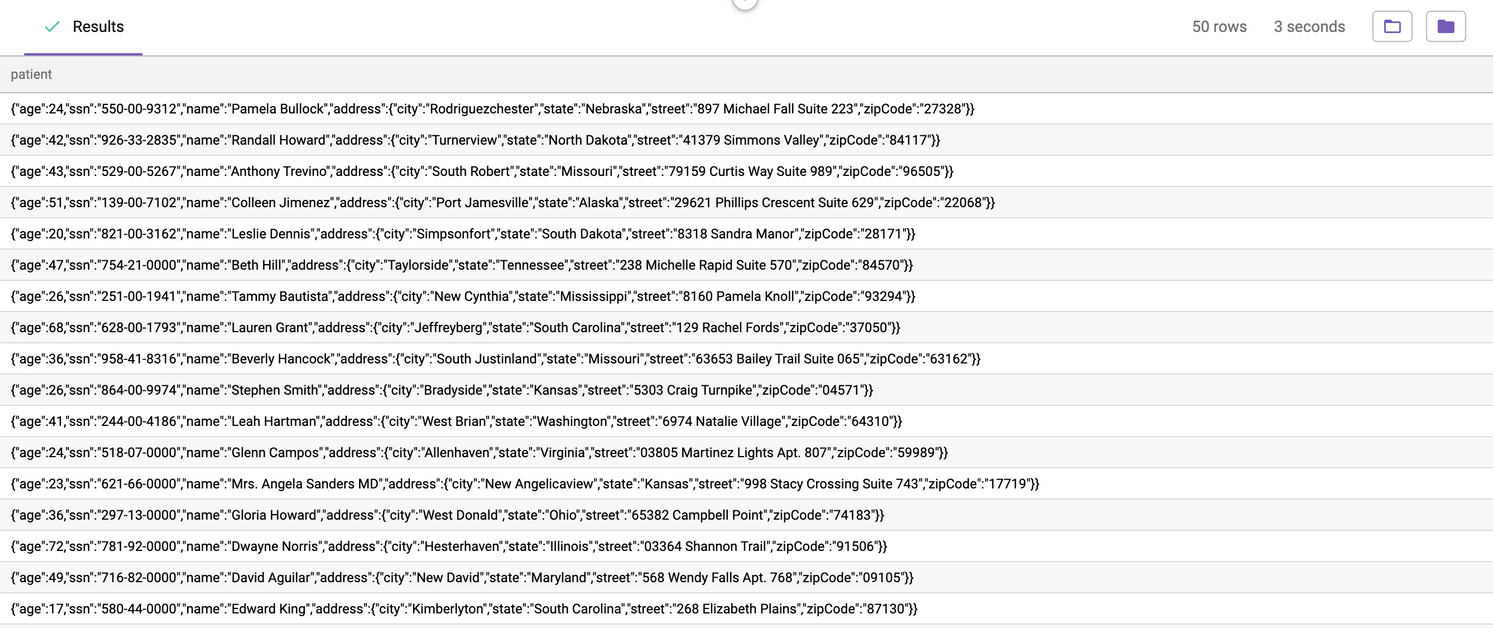
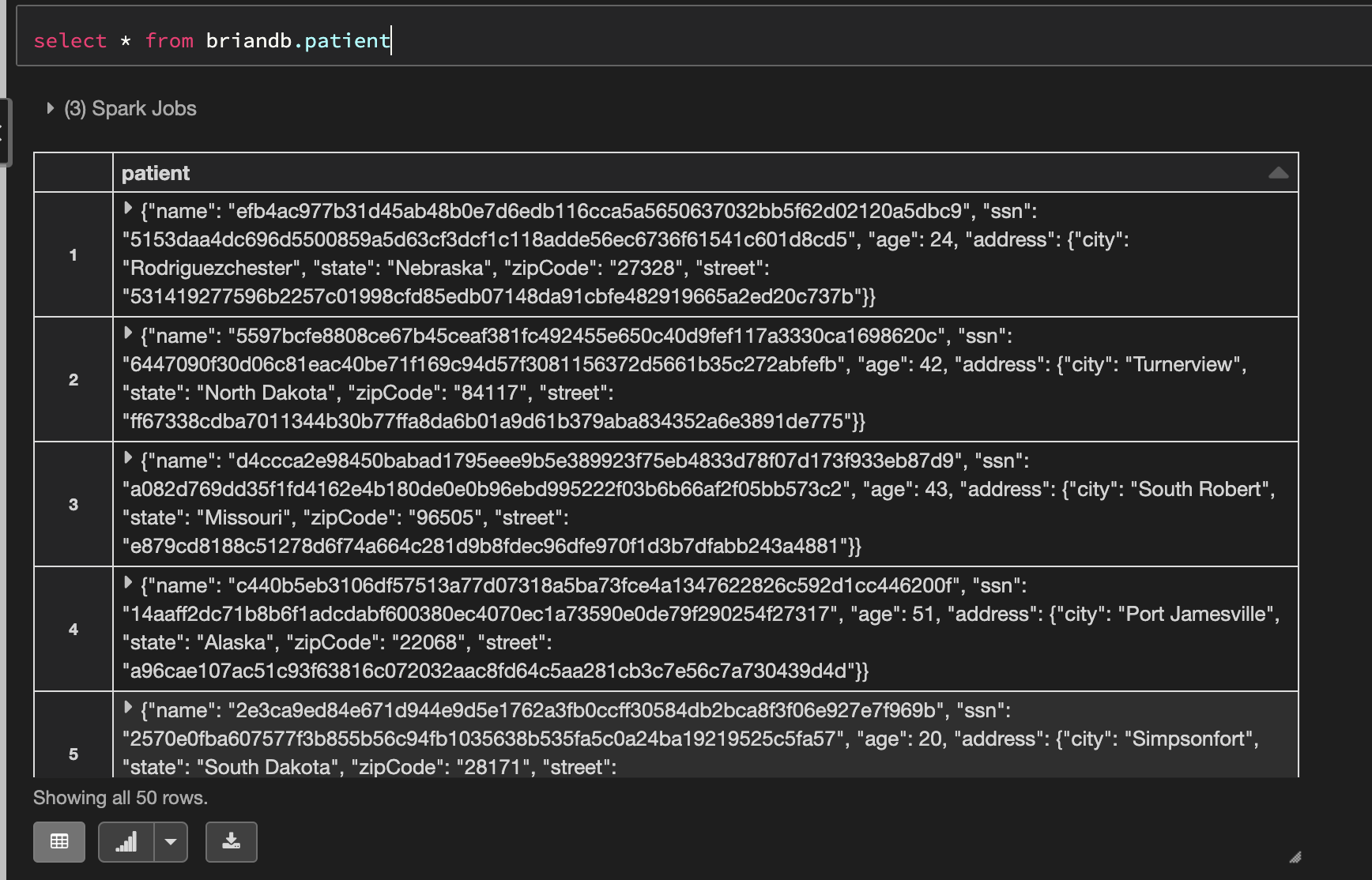
Without this feature enabled, the struct and array columns of a data source default to `jsonb` in the columns tab, and the masking policies that users can apply to `jsonb` columns are limited. For example, if a user wanted to mask PII inside the column `patient` in the image below, they would have to apply null masking to the entire column or use a custom function instead of just masking `name` or `address`.
After **Complex Data Types** is enabled on the [App settings page](https://documentation.immuta.com/saas/configuration/application-configuration/how-to-guides/config-builder-guide#complex-data-types), the column type for struct columns for new data sources will display as `struct` in the columns tab. (*For data sources that are already in Immuta, users can edit the data source and change the column types for the appropriate columns from `jsonb` to `struct`.*) Once struct fields are available, they can be searched, tagged, and used in masking policies. For example, a user could tag `name`, `ssn`, and `street` as PII instead of the entire `patient` column.
After a global or local policy masks the columns containing PII, users who do not meet the exception specified in the policy will see these values masked:
*Note: Immuta uses the `>` delimiter to indicate that a field is nested instead of the `.` delimiter, since field and column names could include `.`.*
{% hint style="info" %}
**Feature limitations**
* This feature is only available for Databricks data sources.
* The Databricks Unity Catalog integration only supports masking with NULL on `STRUCT`, `ARRAY`, and `MAP` type columns.
* This feature only supports Parquet and Delta table types.
{% endhint %}
### **Struct columns with many fields**
To get column information about a data source, Immuta executes a `DESCRIBE` call for the table. In this call, Spark returns a simple string representation of the schema for each column in the table. For the `patient` column above, the simple string would look like this:
`struct>`
Immuta then parses this string into the following format for the data source's dictionary:
```yaml
{
dataType: 'struct',
children: [
{
name: 'name',
dataType: 'text'
},
{
name: 'ssn',
dataType: 'text'
},
{
name: 'age',
dataType: 'integer'
},
{
name: 'address',
dataType: 'struct',
children: [
{
name: 'city',
dataType: 'text'
},
{
name: 'state',
dataType: 'text'
},
{
name: 'zipCode',
dataType: 'text'
},
{
name: 'street',
dataType: 'text'
},
]
}
]
}
```
However, if the struct contains more than 25 fields, Spark truncates the string, causing the parser to fail and fall back to `jsonb`. Immuta will attempt to avoid this failure by increasing the number of fields allowed in the server-side property setting, `maxToStringFields`.
[^1]: Each value will be masked to the same value consistently without colliding with others. Therefore, equal values remain equal under masking while unequal values remain unequal, preserving equality. This implies that counting statistics are also preserved.
[^2]: Support depends on the replacement value.
[^3]: Custom masking functions are any function supported by the underlying database. As a result, the specific characteristics of the masking are entirely dependent on the SQL function being used to mask.
[^4]: The number of data values falling in a particular range is preserved. For strings, this can be interpreted as the number of strings falling between any two values by alphabetical order.
[^5]: Approximate value counts can be recovered via correction factor. The error is tunable by choice of privacy parameters.
[^6]: Approximate with tunable error by choice of rounding parameters.
[^7]: The output will remain near the input, which may be important for analytic purposes.
[^8]: Values must be unique to a record, and the range of format values must cover all possible values.
[^9]: The average of the masked values (`avg(mask(v))`) will be near the average of the values in the clear (`avg(v)`).
[^10]: The length of the masked value is equal to the length of the original value.
[^11]: Preserved for string values, not integers.
[^12]: The output masked value resembles the valid column values. For example, a masking function would output phone numbers when given phone numbers. Here, NULL values are not counted against this property.
[^13]: The masking function can be applied to numeric values.
[^14]: A (possibly identified) person can plausibly attribute the appearance of the value to the masking function. This is a desirable property of masking functions that retain analytic utility, as such functions must necessarily leak information about the original value. Fields masked with these functions provide strong protections against value inference attacks.
[^15]: Values must be unique to a record. Otherwise, record content may be inferable through frequency analysis.
[^16]: The masking function can be used to obscure record identifiers, hiding data subject identities and preventing future linking against other identified data.
[^17]: Repeated values in the same column are masked with the same output.
[^18]: The masking function may, under normal or irregular circumstances, return NULL values.
[^19]: How performant the masking function will be (10/10 being the best).
[^20]: This token is consistent for the same value throughout the data source, so you can count or track the specific values, but not know the true raw value.
![Mask columns tagged Discovered.Telephone Number using the custom function REGEXP_REPLACE(@column, '(\\+?\\d{0,3}[-\\s]?)?\\d{4}', '****').](https://1751699907-files.gitbook.io/~/files/v0/b/gitbook-x-prod.appspot.com/o/spaces%2FlWBda5Pt4s8apEhzXGl7%2Fuploads%2Fgit-blob-7d0ba86a600664da6b3f4007e895914e1538276b%2Ftelephone-custom-function.png?alt=media)
![Masking columns tagged Discovered.Telephone Number using a regex \+?\d{0,3}[-\s]?)?\d{4} with modifiers Global for everyone who is a member of group Data Engineer.](https://1751699907-files.gitbook.io/~/files/v0/b/gitbook-x-prod.appspot.com/o/spaces%2FlWBda5Pt4s8apEhzXGl7%2Fuploads%2Fgit-blob-b4c208ef8d1469096cc7b0aae0b71039761f77fe%2Ftelephone-mask-example.png?alt=media)